Showing posts with label TIPS / TRICKS. Show all posts

Sunday, November 28, 2010

Get Your Signing Certificate ( .cer and .key) within 3 minutes using XStevedore


Get Your Signing Certificate ( .cer and .key) within 3 minutes using XStevedore
No need to Register Anywhere.
No need to submit your IMEI.
Just Install The Application and Follow the Steps.


This post gives you a step by step description to Get your own .cer and .key file using XStevedore with the help of screen shots.

The things you must have:
1. A Nokia Symbian Phone with Internet
2. XStevedore Signed.sisx - Download

XStevedore is a Chinese application so you can't read so i am added the screen shots follow the screen shots well.
Lets Start The Procedure
1. Download and install XStevedore.sisx

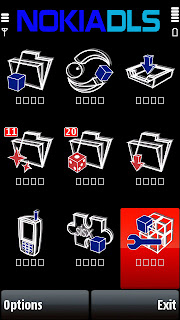
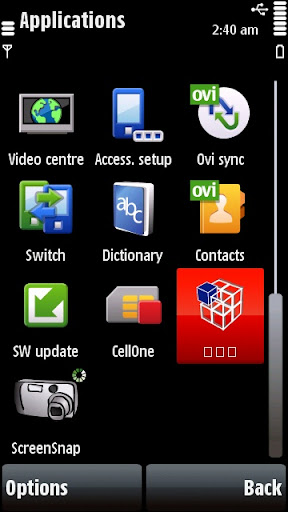
2. Open The Application (Click the red highlighted icon)

3.Now you will get a screen like below. Goto the last item "Settings"(red highlighted) click it .


4. It will Prompt a warning Click Left (red highlighted)


5. It will open a window with 3 options like below.


1. Connection - Click on it and select the gprs connection or Wi-Fi.
( I am selected "BSNL Internet" as its my connection name)
2. Download Path - Click on it and select E:\ (MMC)
3. No need to click the 3rd option
Click Back

6. Now it will go back to the first window like we opened before goto the second last one "Signature "(red highlighted one) and click on it


7. It will Prompt a warning Click Left (red highlighted)


8. Now you will get a window like below


9. Click Options -- second one -- again second one (Download) like the picture below (red highlighted)


10. After loading it will prompt you to select memory ,select MMC press OK and enter the name (default name is "Mycer"). press OK.


After downloading You will get a window like below.


You are done it..!!!
Click Back and Exit the Application.

Now Check For Folder "MyCert" in your MMC vial File browser.
You will get the folder with two files "MyCert.cer" and "MyCert.key".


I am Successfully Did it in my 5800. Please check it and comment here thanks.

If Any One Feels its Difficult Click Here To Get The Alternate method which works for every one.

Read more...

Sunday, November 21, 2010

Sign Unsigned Applications Using Sis Editor

Sign Unsigned Applications Using Sis Editor
No more certificate Error ...!!
This post gives you a step by step description about Adding your signature (.cer and .key file) and Signing unsigned Application using sis Editor v0.70 with the help of screen shots.

The things you must have is .cer and .key file based on your IMEI and sis Editor.
Download sis Editor v0.70 signed Full
Get your signing .cer and .key
If you allready have the Application and .cer and .key skip it.

Adding Your Signature( .cer and .key File) to the sis Editor signature list.

 
1. Place your .cer and .key file in your phone or MMC in any folder.
eg: E:\Others\myCertificate
2. Open SIS Editor
3. Go to Options--Signature--Certificate management


4. Now you will see a page Contains Two Signatures (1.Self Sign 2.BiNPDA)


5. Go to Options--Add certificate


6. Now you will see a page with 3 menu (Certificate name , Certificate file , Private key file) Give any name to Certificate name:(eg: myOPDAcer)


7. Now click on Certificate file:
Options--Browse file
(Browse and select the .cer file in your phone where you saved in your MMC or Phone)
then click on Private key file:
Options--Browse file
(Browse and select the .key file in your phone where you saved in your MMC or Phone)


8. After selecting your .cer and .key file
Go to Options--Save

Done ...! Click Back

Now you will see 3 certificates include one which created by you.

Click Back--Exit

You need to do it only one time ,your added signature will remain in the list untill you delete or remove the sis editor.
Yes you did it you are success fully added your signature to the list.

Steps To Sign Your Unsigned Application Using Your Added Signature.

1. Open SIS Editor

2. Go to Options--Signature--Sign package


3. Now it will give a page to browse the unsigned application that you want to sign
Browse and select it (eg: i am browsed Quick Office 6)

4. Now you will get "Please select signature:" page showing the three signatures include your created one.
Select your signature that you created I am selected MyOPDAcer as i am named it so.


5. Now go to Options--Save file
and Save anywhere you like


Done EXIT
Yes Now You successfully signed your unsigned Application. Please comment here if you face any error.

Read more...

Friday, February 12, 2010

SmartMovie Converter 4.15 with Unlock tutorial


SmartMovie Converter 4.15 with Unlock tutorial
It is the latest version of smart movie converter to convert your big files to convert to the mobile version and play with SmartMovie Player.
Also follow the step-by-step tutorial how to unlock SmartMovie Converter.

Please note that you must have purchased SmartMovie in order to unlock the Converter
To unlock SmartMovie Converter, please follow these steps:
1--->
In SmartMovie Converter, go to Help menu and open Register item.
If there's no Register option available in the Help menu, then you've already registered the Converter, and you don't need to do it again.
2--->
Locate reguest code.
3--->
Open SmartMovie Player on your device,
and select Unlock Converter option.
(Note: this option is available only after you
registered your SmartMovie Player).
4--->
Type the request code from the SmartMovie Converter,
and press OK button.
5--->
Get generated unlock code, and...
6--->
..write it into empty field in the Converter.
Now press OK button and it's done!


Read more...

Sign Unsigned Applications With FreeSignerv1.0


In this Post I am going to describe About the steps of signing unsigned Applications with FreeSignerv1.0.


Just Follow this simple steps with detailed Images

First of all you need to have OPDA certificate and key
Click Here to get your own Signing .cer and .key

1. Copy You OPDA Certificate and Key To Your PHONE MEMORY or MMC
2. Open FreeSignerv1.0
3. Click Options-->Settings


4. Select Sign Cert and Sign Key and browse the .cer and .key from your phone where you copied. ( No need to repeat this step If you want to Sign any Applications later )

5. Click back
6. Click Add Task and browse the Application you want to sign from your MMC. click options-->Add.


7.Click Sign Sis


8.In the new panel Click Options-->Go!. Done..!!

Now go through your Filemanager and Install the Signed one..
Post your valuable feed backs here

Read more...

Get Your own OPDA Certificate and Key

Get Your own OPDA Certificate and Key
What is OPDA Certificate and Key.

We are using OPDA Certificate and Key to Sign Unsigned Application.
(While installing unsigned Application We get warning 'Certificate Error')
Ok Just Follow this Simple step to get your OPDA .Cer and Key

1. Go to http://cer.opda.cn/en/
2. Register a free account there by clicking Register @ Top right
3. After Complete the Registration login to your account
5. Wait 5 sec or Click on My Certificate link
6. Click Apply cer button
7. Fill the Details Done....!!!
You will get your cer and key with in 24hours.

How to Download .key and .cer from your OPDA account?

When you login to your account you will see right of your IMEI like this

1. Click On the .cer to download the certificate.


2. Click On the .key to download the key file.


Done...!!!

If It Take TOO Much Time To Get Your .cer and Key
Click Here

Sign Unsigned using FreeSigner
Or
Sign Unsigned using SisEditor

Read more...

Sunday, September 27, 2009

Make Opera Mini Run Faster!

Make Opera Mini Run Faster!
Opera mini takes a lot of time while saving bookmarks, changing settings or exiting if you've installed it on your memory card. You can make it faster by installing on your phone memory instead.

This tip should work on all symbian s60 3rd edition mobile phones. Tested on N95 8GB.
Enjoy!


Read more...

Friday, September 25, 2009

read deleted SMS messages on any nokia s60/70/80 phone


This would help all ppl who accidently deleted an important sms and lost valuable information.

Required utility:
Any system explorer or file explorer program(eg. Fexplorer)

Step 1) Open Fexplorer

Step 2) Select drive C: or D: depending on the memory in which the Sms messages have been saved.

Step 3) For example u selected c: , Then open "system" folder.

step 4) Then in "system" folder open "mail" folder.

step 5) Then in this folder u will see different folders (eg 0010001_s) and certain files (eg 00100000). These files are the actual messages. Browse through every folder and open all files till u get the sms u are looking for.

Step 6) For opening the files don't choose options>file>open as it will show format not supported rather choose options>file>hex/text viewer. By selecting the "Hex/ text viewer" u ll be able to open and read the deleted SMS message.

Please post ur replies wheter it works on ur phone on not. I ve tested it on my 6600 with latest version of Fexplorer.

Note: This will not work if u ve intentionally deleted the contents of The "mail" folder.


Read more...

Thursday, September 24, 2009

Hide Folder icon in 6300,3110 Series Mobiles


It is the very simplest way to hide the folder icons in 6300,3110 series mobiles......Just this simple steps..

Just Rename ur folder name to "name.ota''........Done...
If ur folder name is "Video" just rename to "Video.ota"....

Read more...

Hide .avi Videos in SmartMovie Player

It simplest way as every one can do this simple steps......Only U have to do is.......!!!

1. Open the video File Location through ur "File Manager".....

2.Click "Option" and select "Rename" as shown in the figure......


3.Delete "I'' from the name of the file.....and press ok...
Thats it Done................


Read more...
Follow