Showing posts with label SIGNING TOOLS. Show all posts

Tuesday, January 25, 2011

Pot Sign Tools v1.87 - New Symbian Application Signing Softwares For PC


Pot Sign Tools v1.87 - New Symbian Application Signing Softwares For PC
It is a very simple user friendly Symbain Application signing software for PC. any one can simply sign their symbian application with Pot Sign Tools v1.87.

Easy sign symbian os 9.x application with your own certificate and key.

Extract the imei(s) from symbian signed certificate(s) to see that certificate is yours or not

Selfsign symbian os 9.x application witch is only with (Local Services Network Services Read User Data User Environment Write User Data & Location permission on fp2 and s60v5 )

Root sign symbian os 9.x application with the Opda , leftup , BiNPDA based root signs

Program contain quick imei viewer function that allow you to find your imei contain the certificate or not by clicking on the path of the certificate after select the certificate file.

Sign immediately after drag and drop function can make sign so easy and you need not to press the sign button after drag your files on the list and it can save your time

by remove unsigned files function you can remove your unsigned files after sign

save the cer and key files path allow you to do not select your certificate and key for the next time and the program will select your files automatically after start for the program

Signed files path can easily set the path of signed files and you can directly move the signed files to your phone in data storage mode

Change Log:

1- Checking certificate and key matching and healthy function added
2- Added simple mode to application to easy use
3- Log function for creating text file of the jobs you have done with application
4- Unsigned function added
5- Some bug fixed about quick imei viewer
6- Fixed bug that application didn't start on some pc
7- Added capabilities for WIN 7 64 bit

Special TNX TO ice_heart_010 & Nima79


Download
Note : If any Software gives "Certificate error..!!!" Warning , Then Sign it Using .cer and .key .To get Your own .cer and .key Click Here

Read more...

Sunday, November 28, 2010

Get Your Signing Certificate ( .cer and .key) within 3 minutes using XStevedore


Get Your Signing Certificate ( .cer and .key) within 3 minutes using XStevedore
No need to Register Anywhere.
No need to submit your IMEI.
Just Install The Application and Follow the Steps.


This post gives you a step by step description to Get your own .cer and .key file using XStevedore with the help of screen shots.

The things you must have:
1. A Nokia Symbian Phone with Internet
2. XStevedore Signed.sisx - Download

XStevedore is a Chinese application so you can't read so i am added the screen shots follow the screen shots well.
Lets Start The Procedure
1. Download and install XStevedore.sisx

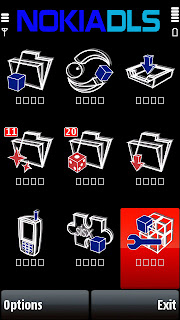
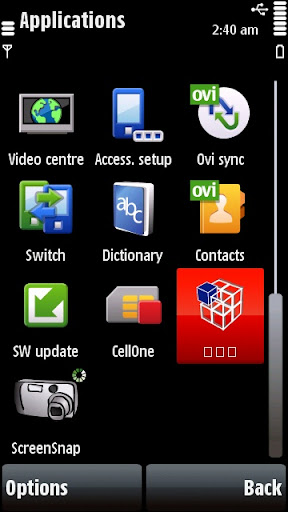
2. Open The Application (Click the red highlighted icon)


3.Now you will get a screen like below. Goto the last item "Settings"(red highlighted) click it .


4. It will Prompt a warning Click Left (red highlighted)


5. It will open a window with 3 options like below.


1. Connection - Click on it and select the gprs connection or Wi-Fi.
( I am selected "BSNL Internet" as its my connection name)
2. Download Path - Click on it and select E:\ (MMC)
3. No need to click the 3rd option
Click Back

6. Now it will go back to the first window like we opened before goto the second last one "Signature "(red highlighted one) and click on it


7. It will Prompt a warning Click Left (red highlighted)


8. Now you will get a window like below


9. Click Options -- second one -- again second one (Download) like the picture below (red highlighted)


10. After loading it will prompt you to select memory ,select MMC press OK and enter the name (default name is "Mycer"). press OK.


After downloading You will get a window like below.


You are done it..!!!
Click Back and Exit the Application.

Now Check For Folder "MyCert" in your MMC vial File browser.
You will get the folder with two files "MyCert.cer" and "MyCert.key".


I am Successfully Did it in my 5800. Please check it and comment here thanks.

If Any One Feels its Difficult Click Here To Get The Alternate method which works for every one.

Read more...

Sunday, November 21, 2010

Sign Unsigned Applications Using Sis Editor

Sign Unsigned Applications Using Sis Editor
No more certificate Error ...!!
This post gives you a step by step description about Adding your signature (.cer and .key file) and Signing unsigned Application using sis Editor v0.70 with the help of screen shots.

The things you must have is .cer and .key file based on your IMEI and sis Editor.
Download sis Editor v0.70 signed Full
Get your signing .cer and .key
If you allready have the Application and .cer and .key skip it.

Adding Your Signature( .cer and .key File) to the sis Editor signature list.

 
1. Place your .cer and .key file in your phone or MMC in any folder.
eg: E:\Others\myCertificate
2. Open SIS Editor
3. Go to Options--Signature--Certificate management


4. Now you will see a page Contains Two Signatures (1.Self Sign 2.BiNPDA)


5. Go to Options--Add certificate


6. Now you will see a page with 3 menu (Certificate name , Certificate file , Private key file) Give any name to Certificate name:(eg: myOPDAcer)


7. Now click on Certificate file:
Options--Browse file
(Browse and select the .cer file in your phone where you saved in your MMC or Phone)
then click on Private key file:
Options--Browse file
(Browse and select the .key file in your phone where you saved in your MMC or Phone)


8. After selecting your .cer and .key file
Go to Options--Save

Done ...! Click Back

Now you will see 3 certificates include one which created by you.

Click Back--Exit

You need to do it only one time ,your added signature will remain in the list untill you delete or remove the sis editor.
Yes you did it you are success fully added your signature to the list.

Steps To Sign Your Unsigned Application Using Your Added Signature.

1. Open SIS Editor

2. Go to Options--Signature--Sign package


3. Now it will give a page to browse the unsigned application that you want to sign
Browse and select it (eg: i am browsed Quick Office 6)

4. Now you will get "Please select signature:" page showing the three signatures include your created one.
Select your signature that you created I am selected MyOPDAcer as i am named it so.


5. Now go to Options--Save file
and Save anywhere you like


Done EXIT
Yes Now You successfully signed your unsigned Application. Please comment here if you face any error.

Read more...

Friday, February 12, 2010

Sign Unsigned Applications With FreeSignerv1.0


In this Post I am going to describe About the steps of signing unsigned Applications with FreeSignerv1.0.


Just Follow this simple steps with detailed Images

First of all you need to have OPDA certificate and key
Click Here to get your own Signing .cer and .key

1. Copy You OPDA Certificate and Key To Your PHONE MEMORY or MMC
2. Open FreeSignerv1.0
3. Click Options-->Settings


4. Select Sign Cert and Sign Key and browse the .cer and .key from your phone where you copied. ( No need to repeat this step If you want to Sign any Applications later )

5. Click back
6. Click Add Task and browse the Application you want to sign from your MMC. click options-->Add.


7.Click Sign Sis


8.In the new panel Click Options-->Go!. Done..!!

Now go through your Filemanager and Install the Signed one..
Post your valuable feed backs here

Read more...

Free Signerv1.0 - S60V3 and S60V5


Free Signer v1.0 For S60v3 and S60v5
FreeSigner that allows you to directly sign s60v3 and s60v5 edition software, applications and games on your mobile device without transferring the files to your computer.
features

* support Remove signature.
* support for the PKCS # 8 format of the private key(SignSis does not support).
* support operation of the mixed batch.
* support Self Sign SiS & Sign SiS.
* support setting the path of the sisx file output.

Note : Before Installing FreeSignerv1.0 Change your phones date back to 2009.

Download

Click Here to read the Tutorial of Signing Unsigned Applications with FreeSignerv1.0

If Free Signer Gives Any Error
Click Here

Read more...
Follow